
Introduction
In modern development workflows, automation is essential. Whether you’re managing documentation, technical blogs, or production-ready websites, Continuous Integration (CI) helps maintain consistency and reliability across changes.
In this article, we’ll walk through building a basic CI pipeline for a Hugo static site using GitHub Actions that will simulate a team workflow. Each time a contributor pushes content to a feature branch, our pipeline will:
-
Validate the Markdown files
-
Simulate a Hugo site preview in a container
-
Perform a quick smoke test on the home page
-
Automatically merge the changes into
mainif everything passes
By the end of this guide, you’ll have a solid foundation to expand into more advanced CI/CD (Continuous Delivery/Deployment) setups tailored to your team or personal project.
Preriquisites
Before you start, make sure your environment meets the following requirements:
1. GitHub Repository
You should already have:
-
A GitHub repository containing your Hugo-based website.
-
A
mainbranch and a feature branch.
To check:
|
|
2. Hugo Installed Locally (Optional but Useful)
You may want to preview changes locally before pushing.
To check:
|
|
If not installed, follow instructions at gohugo.io
3. GitHub Actions Enabled
Nothing to install, GitHub Actions is built-in. You just need to add a workflow under:
|
|
To do so:
- From your repo root, create the folders:
|
|
- Create your CI workflow file:
|
|
(or use any editor you like)
- Save and exit (we will paste our GitHub Actions workflow YAML content inside it later)
Don’t leave the file empty or it won’t save itself, add some commentaries like
#CI Configuration File)
If everything is fine, you should have this folder setup:
|
|
4. Node.js and npm (for Markdown linting)
If not already installed, run the following lines get the latest LTS version officially provided by NodeSource:
|
|
Then check:
|
|
5. markdownlint-cli
Used in the CI to lint (running the program that will analyse code for potential errors) .md files.
To install globally (for testing locally):
|
|
To check:
|
|
6. Docker
Used in the pipeline to simulate Hugo preview with an Nginx container.
To check:
|
|
You should also be able to run:
|
|
7. HTTPie (for local testing)
To check:
|
|
If not installed:
|
|
Pipeline Stages Breakdown
| Stage | Description |
|---|---|
| Stage 1 — Markdown Linting | Ensures all .md files follow formatting standards (style, spacing, headers, etc.). |
| Stage 2 — Hugo Server in Container | Launches a container running a local Hugo preview server to simulate how the site would render in production. |
| Stage 3 — HTTPie Smoke Test | Sends a request to the homepage using HTTPie and checks that expected content is present (e.g., <title> or specific text). |
| Stage 4 — Auto Merge to main | If all stages pass, the pipeline merges dev-feature-1 into main, following a “merge if green” principle common in modern CI/CD workflows. |
CI Configuration File (ci.yml)
We’re now going to edit the Github Actions workflow file.
Step 1 — Markdown Linting
This step checks the syntax of all your .md. files.
Go to your .github/workflows/ci.yml and paste this:
|
|
You can ignore certain files via
.markdownlintignoreif required..
Step 2 — Hugo Server in Container
Add this second job in the file after the lint-markdown one:
|
|
-
klakegg/hugo:extis an official Docker image with Hugo + extended modules -
--minifychecks that site generation works even with optimization
✅ This job will automatically fail if Hugo detects a build error in your content.
Step 3 — HTTPie Smoke Test
This test verifies that the generated site contains the expected elements. To do this :
Add this third job inside ci.yml:
|
|
This test simulates an HTTP request on the generated
index.htmlfile to ensure that everything has been done correctly on the content side.
- Starts Hugo’s dev server on
http://localhost:8080in the background- Waits for it to boot
- Sends an HTTP GET request to the homepage using HTTPie
- Searches for
<title>in the response content to validate output
Step 4 — Auto-Merge to main
Preriquisites
First of all, make sure the “Allow auto-merge” option is enabled on your GitHub repository:
-
Go to GitHub >
Settings. -
Scroll down until reaching “Pull Requests”
-
Check ✅ “Allow auto-merge”.
Then add this job at the end of your file:
|
|
Summary of behavior :
-
When a contributor pushes a PR (e.g.
dev-article-1), the 3 previous jobs (lint, build, test) run. -
If everything passes, the
auto-mergejob activates the automatic merge. -
GitHub then merges the PR into
mainwithout manual intervention
Now that we finished editing the ci.yml, the next step is to commit and push it so that GitHub Actions can start running the workflow.
Simulating a Content Contribution
1. Commit the ci.yml file
If you haven’t committed your updated workflow file yet:
|
|
Note: The pipeline only runs on
mainandpull_requestevents targeting main. So you’ll need to work in a feature branch next.
⚠️ Also don’t forget to generate a new token with
workflowscope, else GitHub will refuse the push.
2. Create a Feature Branch for a New Article
Run this line to create a new branch in your repo:
|
|
Then make a small change (e.g., add a commentary to a the index.md file of a post):
|
|
3. Open a Pull Request
Go to GitHub and create a PR from dev-test-article into main.
The workflow will now trigger:
- Markdown linting
- Hugo preview build
- HTTPie smoke test
- Auto-merge, if all pass
Once green, the PR will auto-merge, without any manual approval needed.
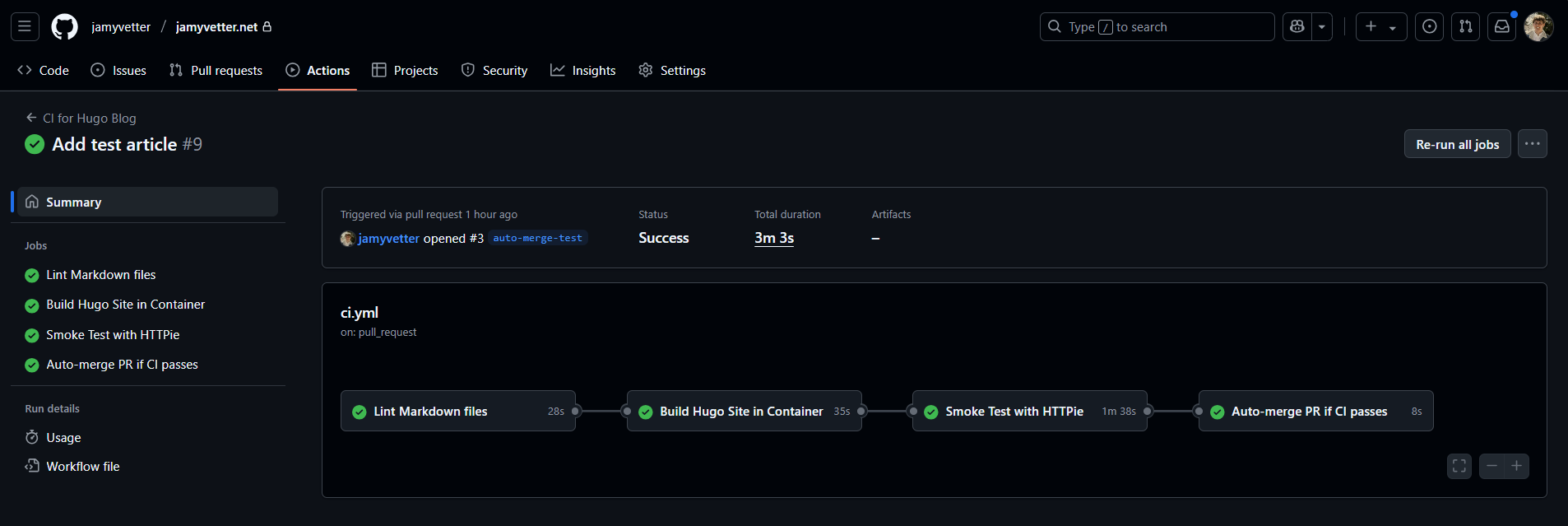
CI pipeline Final Look
Troubleshooting
Common CI Error: can't evaluate field Lastmod in type page.Site
If you’re using hugo-theme-stack, you might hit a build error when Hugo tries to sort or access .Site.Lastmod.
This happens because Lastmod isn’t directly defined on page.Siteobjects.
Fix: Replace this line in your theme’s OpenGraph partial (generally located at themes/<your-theme>/layouts/partials/head/opengraph/provider/base.html):
|
|
with:
|
|
⚠️ This bug won’t appear locally unless you’re running
hugo --minifyor building inside a container, like in CI.
Conclusion
I really encourage you to give this GitHub Actions CI setup a try for your Hugo site. It’s simple to configure, and once it’s running, it gives you a smooth and reliable publishing workflow out of the box.
With automated builds, linting, smoke tests, and even auto-merging, you’ll spend less time worrying about mistakes and more time writing great content.
Thanks for reading! I hope this helps make your publishing process cleaner, faster, and more enjoyable.